
What's New
- You like Kejut and want to place a link to Kejut in your website? That's easy! Click here!

This Week's Top 10
| 1086 | | 989 | | 763 | | 747 | | 735 | | 731 | | 684 | | 677 | | 658 | | 578 |
Random Articles

RatHoles: Are you bored?
|
|
Step-by-step instructions on sending SIS and JAR files via Bluetooth on S60 devices (Symbian OS 9.x, Series 60 3rd edition).
With this you can now send installer files directly from your phone to your friends!
Petunjuk mengirim file SIS dan JAR lewat gigi biru (Bluetooth) di ponsel Nokia S60.
Dengan ini anda bisa kirim file instaler langsung dari hape ke teman-teman!
Sending SIS or JAR files in Symbian Series 60 (S60) 3rd edition Nokia mobile phones. The list of the phones can be seen on the list below.
Mengirim file SIS atau JAR bagi pemilik HP Nokia Symbian Seri 60 edisi 3. HP yang termasuk kategori itu di antaranya dapat dilihat di daftar di bawah ini.
- Nokia 3250
- Nokia 5320 XpressMusic
- Nokia 5500
- Nokia 5700 XpressMusic
- Nokia 6110 Navigator
- Nokia 6120
- Nokia 6120 classic
- Nokia 6121
- Nokia 6121 classic
- Nokia 6124 classic
- Nokia 6210 Navigator
- Nokia 6220 classic
- Nokia 6290
- Nokia 6290
- Nokia 6650
- Nokia E50
- Nokia E51
- Nokia E60
- Nokia E61
- Nokia E61i
- Nokia E62
- Nokia E65
- Nokia E70
- Nokia E90 Communicator
- Nokia N71
- Nokia N73
- Nokia N75
- Nokia N76
- Nokia N77
- Nokia N78
- Nokia N80
- Nokia N81
- Nokia N81 8GB
- Nokia N82
- Nokia N91 8GB
- Nokia N92
- Nokia N93
- Nokia N93i
- Nokia N95
- Nokia N95 8GB
- Nokia N95-3 NAM
- Nokia N96
When we have a neat or interesting program in our mobile phone, our friends ask us to share or send the program. Even if we have the installer (SIS or JAR) files, everytime we try to send the program via Bluetooth there is an pop-up error message, "Unable to send protected object". Fortunately there is an amazing person who can overcome this problem. Both SIS and JAR files can be sent by Bluetooth without renaming the files.
Sering kali kita punya program bagus dan menarik di hp lalu teman minta bagi2 programnya. Walaupun instaler (sis maupun jar)nya udah disimpen di hp, pas mau kirim file pake gigi biru (bluetooth) selalu keluar pesan "Unable to send protected object". Untunglah ada orang hebat yang bisa mengatasi masalah ini. Baik SIS maupun JAR bisa dikirim. Petunjuk berikut pakai bahasa Inggris.
Quick method
For those who do not need step-by-step instructions, how to send SIS (or SISX) and JAR files:
- Download and install Y-Browser
- Download and install BT Obex Sender
- Select the file to send, click Options and choose File → Send → BT Obex
Step-by-step instructions
Download the freeware file manager program Y-Browser at least version 0.88. The homepage is here, but the installer file is also available here. To send Symbian installer files (SIS) and Java archive files (JAR) via Bluetooth, you will also need a plugin called BTObex Sender. The plugin can be downloaded here.
Install the above two files on your phone. There are many ways to install, the easiest one is using PC Suite if your phone is already connected, or by sending the files using Bluetooth on your computer. Depending on the phone, infra-red may also be possible, as well as transferring directly from internet at your phone (Type the address www.kejut.com/download/328 and www.kejut.com/download/329 in your phone).

After installing both of the files, open the Applications menu on your phone, go to a new folder called Dr.Jukka. There you will find Y-Browser icon. Run it.

Select the file you want to send. Then, click the Options soft-key, select File and then Send.
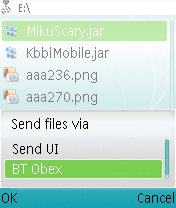
You will see this menu. Select BT Obex. Then you can select the recipient and they will receive any file you want to send!
Ending
The below list is only to help people searching using different terms.
- Easy way to send SIS files to remote phone
- Sending installer files in Nokia version 9 Operating System
- Distribute Java midlet and Symbian installer system files
- Send protected object from Symbian v9, 9.1, 9.2, 9.3, 9.5
- Jar file sending in Symbian 9, v9.1, v9.2, v9.3, v9.5
- Transfer SIS and JAR files to other phones
Written by: yuku
| Wah, Yuku hebat. Kok gak nulis gini dari dulu saja. Itu
belum selesai menerjemahkan semuanya ya? Kok instruksinya
dlm Inggris saja.
Saya heran, sudah 11 hari kok blm ada yg nulis komen ya.
Jadi yg pertama deh!
|
| Informasi berharga untuk anda. Web yang di perkirakan bakal
mengalahkan
Yahoo dan Google yang akan lounching pada tgl 1 Juli 2008
akan
membagikan sebagian sahamnya yang sebesar $ 1,000,000.00
kepada siapa
saja yang bergabung menjadi anggotanya (Free) sebelum tgl 1
Juli 2008.
Ayo buruan gabung untuk mendapatkan saham gratis. FREE to
JOIN. all the
world.
KLIK Join Disini http://www.WebUpgrade9.com/shodiqfm
sahabat [id], 9 Jun 2008, 4:45 reply

|
| Nice work!thanks!!!
|
| lovely
|
| good article and good web
|
| duhhh makasih ya.. udah nyari2 ternyata ada di website negri
sendiri.. makasih yaaa
gita [fr], 10 Oct 2008, 6:49 reply
|
| Wahh nice work..dari dulu cari cara buat kirim2 file pakai
Nokia ga dapat2, padahal Y-Browser udah lama diinstall
ternyata kuncinya ada di BT Obex ya..Thnks ya bosss
hilman Permana [id], 12 Nov 2008, 6:18 reply
|
| Bang Yuku gua minta dmn alamat buat ngedownload y-browser?kq
gua nyari gk ktmu2.uwdah abiz pulsa bnyk nich!!!
Paman_euy [us], 19 Nov 2008, 18:06 reply
|
| Alhamdulillah......
Akhrny Sudah dpt y-browser dr stus km Bang Yuku, mkcih
ya!!!???
Sy bleh tanya lg gag? truz klu software buat nokia N73 sya
yg da mailboxy n' bs buat nge hidden file" tu nmany paan
yach?klu tau alamtny dmn y?mkacih bang YUKU kur
ruyuuk....hi2xz(jst kdding)
PAMAN [us], 19 Nov 2008, 18:28 reply
|
| Mana jawabany Yuku?
Paman!! [us], 20 Nov 2008, 7:32 reply
|
| akhirnya... dulu kudu pake sony erricson temen saya buat
ngirim2 file jar n sis..
sekarang udah bisa
thx for the tutorial......!!!!!! :D
|
| bodoh,..
buat pengguna symbian platform 40 & selaen merek nokia ada
cara lebih gampang,..
ngapain susah2 nyri program,..
mending rename aja format/extentionnya aja,.
terus kirim deh,..
yang gw tau os nya itu ngebaca pihak ke3 (sis/jar) sebagai
file yang punya licensi,..
kalau loe rubah formatnya secara gak langsung loe udah
ngilangin metode pembacaan licensinya,..
tapi neh cuma bisa dipakai ke symbian dgn platfoem seri 40
sama seri laen selaen nokia,...
(sebenernya sih ada beberapa jenis program(selectQ) yang
udah support,...so just send and received)
lee [id], 24 Jun 2009, 9:00 reply
|
| wah akhirnya sekarang aku menemukan solusinya....soalna dari
kmaren ngirim file sis dan jar lwat gigi biru unable
melulu...thank u ya.....
hendrik [--], 30 Sep 2009, 3:12 reply
|
| Siiippp...!!!! bosss.... thank you.......
|
| Powerful tips, thanks.
Expert Advisor [id], 15 May 2010, 1:50 reply
|
| Bos yuku, setelah ikutin petunjuk diatas pada nokia e63
saya...kok saya tidak bisa kirim, ada tulisan connection
failed :-1... itu kenapa ya bos ? Please help
Artupake [id], 31 May 2010, 3:35 reply
|
| Pake fileman atau fexplore jg bs!
Asir [us], 23 Sep 2010, 10:22 reply
|
| Makasih banget gan, artikelnya berguna banget
|
|
|

 111624


